
Get started
Sign in, switch apps, change the language and sign out. These work the same in every app.
This page covers what works the same in every app, from signing in to signing out.
Sign in
- Open the app from the address your administrator gave you.
- Click Sign in.
- Enter your Username or email and Password, then click Sign in.
- The platform brings you back to the app you started from. If you opened the sign-in page directly, it takes you to the Portal.
You sign in once and it works for every app on the platform. Other apps do not ask for your password again.
The sign-in page has two sides. The left side is the brand panel of your platform, and the right side is the form. On a phone or a narrow screen only the form is shown. The name, logo, colours and welcome text belong to your platform, and your administrator sets them (Sign-in page).
- Change the language. Click ไทย or English on the page. The page changes at once without clearing what you typed, and the browser remembers your choice.
- See the password you typed. Click the Show password button at the end of the password field. Click Hide password to hide it again.
- If it says "The username or password is not correct.", the username or password is wrong. Type it again.
- If the app says "An error occurred while fetching tokens.", click Retry.
Let the browser remember your sign-in
The browser remembers your sign-in for 30 days. If the administrator set the platform to forget it when the browser closes, you must sign in again every time you open the browser.
Next time the sign-in page shows Choose an account. Click your account, or click Use another account to use a different one. If you share the computer with other people, click the ✕ button beside your account (Remove ... from this list) to remove it from the list.
Two-step verification
If the administrator turned it on, after your password you must also enter a 6-digit code from an app on your phone. The first time, you must set it up.
- Install an authenticator app on your phone, for example Google Authenticator or Authy.
- Scan the QR code on the screen with that app. If you cannot scan it, enter the key manually.
- Type the code the app shows into 6-digit code, then click Verify and turn on.
- The screen shows backup codes, only this one time. Click Copy or Download and keep them somewhere safe.
- Tick I have saved my backup codes in a safe place., then click Continue.
From then on, type the 6-digit code from the app and click Verify. If you lose your phone, click Use a backup code instead, type one backup code into Backup code, and click Verify. To go back to the app, click Use the authenticator app instead.
Enter the key instead of scanning
Use this when you cannot scan the QR code, for example when you set up on the same phone that shows this page, which cannot scan its own screen.
- At the scan step, click Can't scan? Enter the key manually. On a phone this section is already open.
- In the authenticator app, choose "Enter a setup key" (or "Enter manually").
- Click Copy key under Setup key and paste it into the app. The key is shown in groups of four characters to be easy to read. When you copy it, the spaces are left out. If copying fails, the page asks you to select the key and copy it yourself.
- Fill in Account name and Issuer as this section shows them. The Issuer is the short name or platform name your administrator set, or "aWhere" if none was set. Under Settings to choose in the app are the values to pick: type Time-based (TOTP), 6 digits, a 30-second interval and the SHA-1 algorithm. If the app does not ask for these, its defaults are already right.
- Type the 6-digit code the app shows into 6-digit code, then click Verify and turn on. Then keep the backup codes as in step 4 of the list above.
On a phone this section has an Open in authenticator app button. Tap it and the account is added to the app directly, with no need to copy the key.
Forgot your password
If there is no Forgot password? under the password field, contact your administrator.
- Click Forgot password?
- Type the email of the account into Email address, then click Reset Password.
- Open the email you got from the platform and click the link in it within 24 hours.
- Type a new password of at least 8 characters into New password and Confirm password, then click Update new password.
- Sign in with the new password.
After you set a new password, every device using this account must sign in again. If it says "The email address is not correct.", that email does not match the account of any user on the platform.
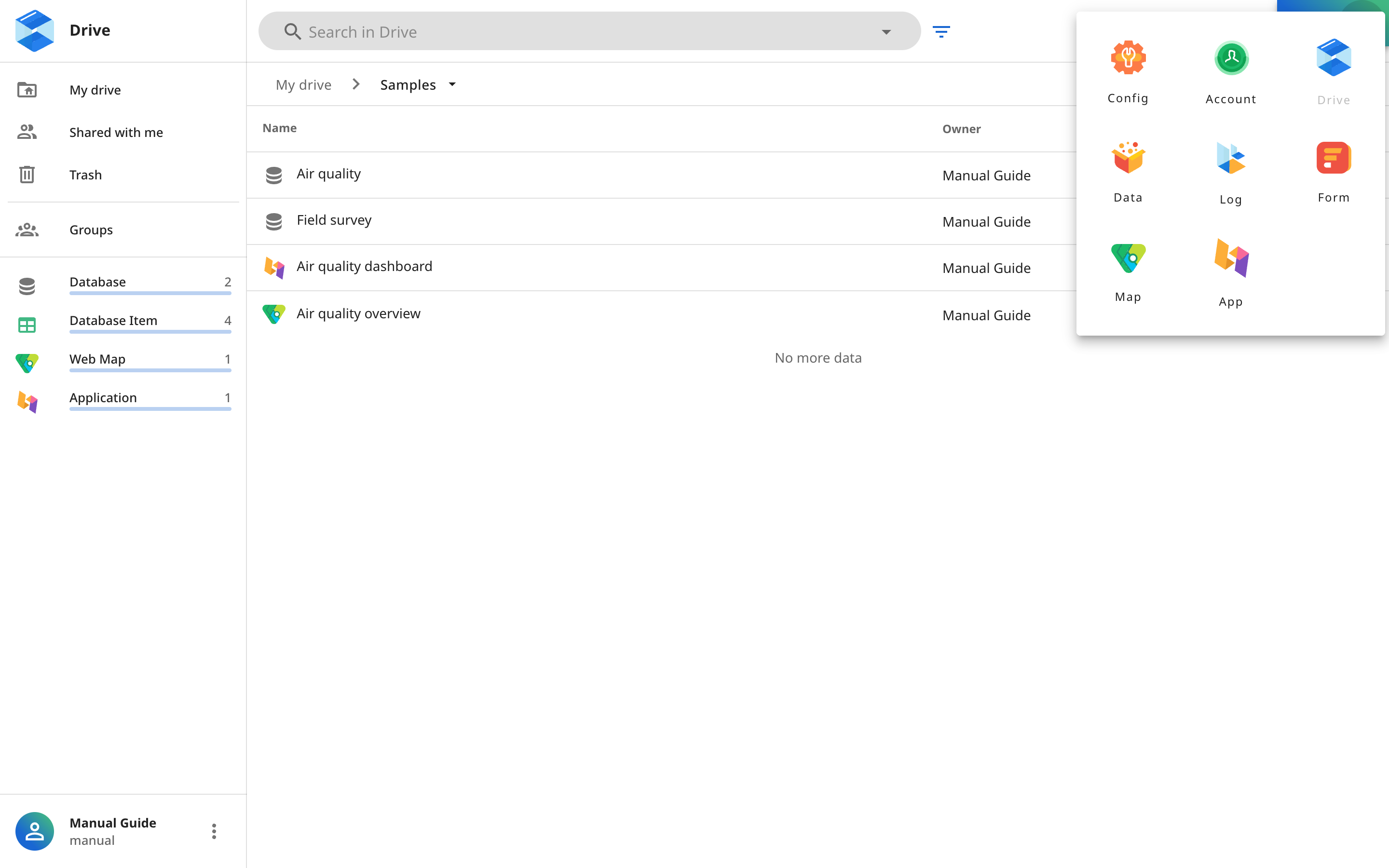
Switch apps with the Launcher
- Click the grid button on the top bar. In App Studio this button is called Apps. In Configuration it is called Switch app.
- Click the app you want.
Some apps have short names. Configuration is Config, Map Studio is Map and Log Monitoring is Log. If you do not see the app you want, your platform does not have that app installed. Ask your administrator.
Change the language
- Click the translate button on the top bar. In App Studio this button is called Language.
- Choose English or ภาษาไทย.
The app changes language at once and remembers it in this browser.
Your account card
The account card shows your photo, name and email, with the buttons Manage your account, Help and Sign Out.
- In apps with a menu on the left, click the ⋮ button beside your name at the bottom of the menu.
- In App Studio, click your photo on the top bar.
Manage your account opens the Account app.
Help, and the new version bar
Click Help in the account card. The manual for the app you are using opens in a new tab, for the version your platform runs.
If a bar at the bottom right says "This page is from release X; the platform is now release Y.", the platform was just upgraded. Click Reload to use the page of the new version, or click Dismiss and keep working.
Sign out
- Open your account card.
- Click Sign Out.
You sign out of every app on the platform in this browser at the same time. You do not need to sign out of each app.
The apps
- Portal the platform's front page, search, and where you start your work
- Account your personal info, password, API keys and groups
- Drive store, organize and share all your files and Items
- Data Studio databases and tables
- Map Studio web maps
- Form Studio forms for collecting data
- App Studio dashboards from your data
- Log Monitoring the audit log and usage statistics