
UseApp Studio
App Studio
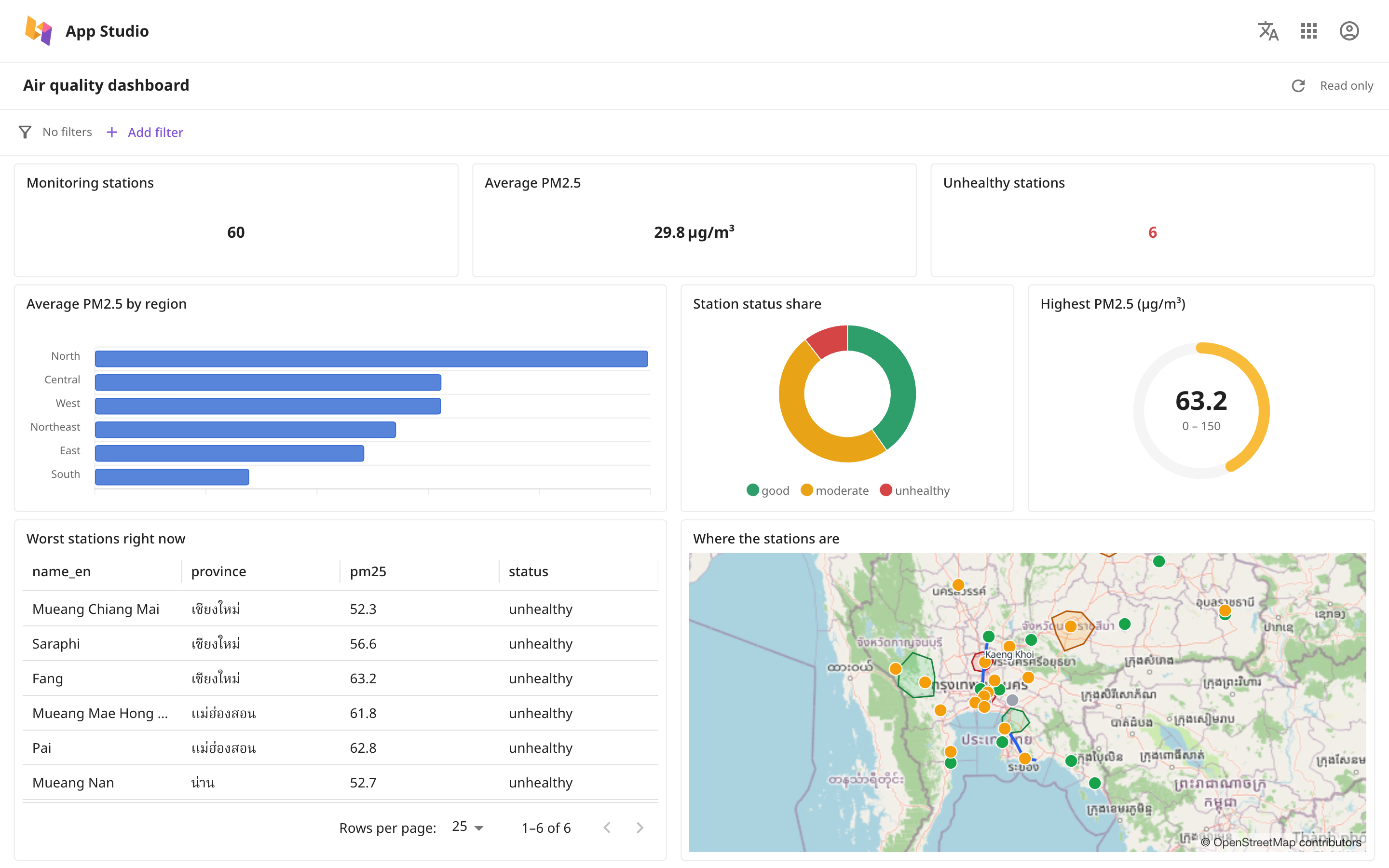
Bring charts, tables, key figures and maps from your data into one dashboard, then share it with others.
App Studio brings charts, tables, key figures and maps from your tables into one dashboard, then shares it with others.
Open App Studio
- Open the Launcher and press App.
- If you are not signed in, press Sign in.
App Studio opens at the home page, which lists every dashboard you can open.
The screens
| Screen | What it is for | How to get there |
|---|---|---|
| Home page | Find, create, share and delete dashboards | Open App Studio |
| Viewer | View a dashboard. The top right says Read only | Click the dashboard's card |
| Editor | Place widgets and choose data | Click the three-dot button on the card, then choose Edit |
Build a dashboard step by step
- Create a dashboard
- Place widgets
- Choose the data for a widget
- Adjust how a widget looks
- Share it with others
To let viewers filter the data themselves, see Filter the whole dashboard. To make a widget always show only part of the data, see Conditions and parameters. To add a map, see The map widget.
If the screen says the app is not installed
If the screen says "This app isn't installed on this site", ask an administrator to install it as described in Apps and the Marketplace.