
Configuration
Open Configuration, see which menu needs which permission, and read the Overview to find what the site needs from you.
This page opens the Configuration App, where administrators manage users, roles, Apps and the site's settings, and then reads the Overview to see what needs attention.
Open Configuration
- Open the Launcher in any App and choose Configuration.
- Configuration opens on the Overview. The other pages are in the menu on the left.
On a narrow screen the menu is hidden. Press the Menu button in the top bar. The Language button switches between English and Thai.
Which menu needs which permission
You see only the menus your role has permission for. An administrator sets these permissions on the Roles page.
| Menu | The role needs |
|---|---|
| Users | Can create user, Can edit user or Can delete user |
| Roles | Can create role, Can edit role or Can delete role |
| Apps | Can manage apps |
| Sign-in & security, Sign-in page, Default map, Public access and System | Can edit configuration |
| API keys and OAuth clients | Can create credential, Can edit credential or Can delete credential |
| Audit log | The Administrator role |
Editing the Portal page is not a Configuration menu. You do it on the Portal page itself, and the role needs Edit the Portal page (Edit the Portal page).
If a role has none of these permissions, Configuration shows "403 Forbidden". A person who can view but not change sees View instead of Edit, and cannot change the form.
Audit log
The Audit log menu opens the Audit log in the Log Monitoring App in a new tab. For now the Roles page has no box for the permission to see the Audit log and usage figures, so only the Administrator role sees this menu, the Active in the last 7 days figure and the Recent admin activity block.
Overview
The Overview gathers the site's news on one page. Each person sees only the blocks their role has permission for.
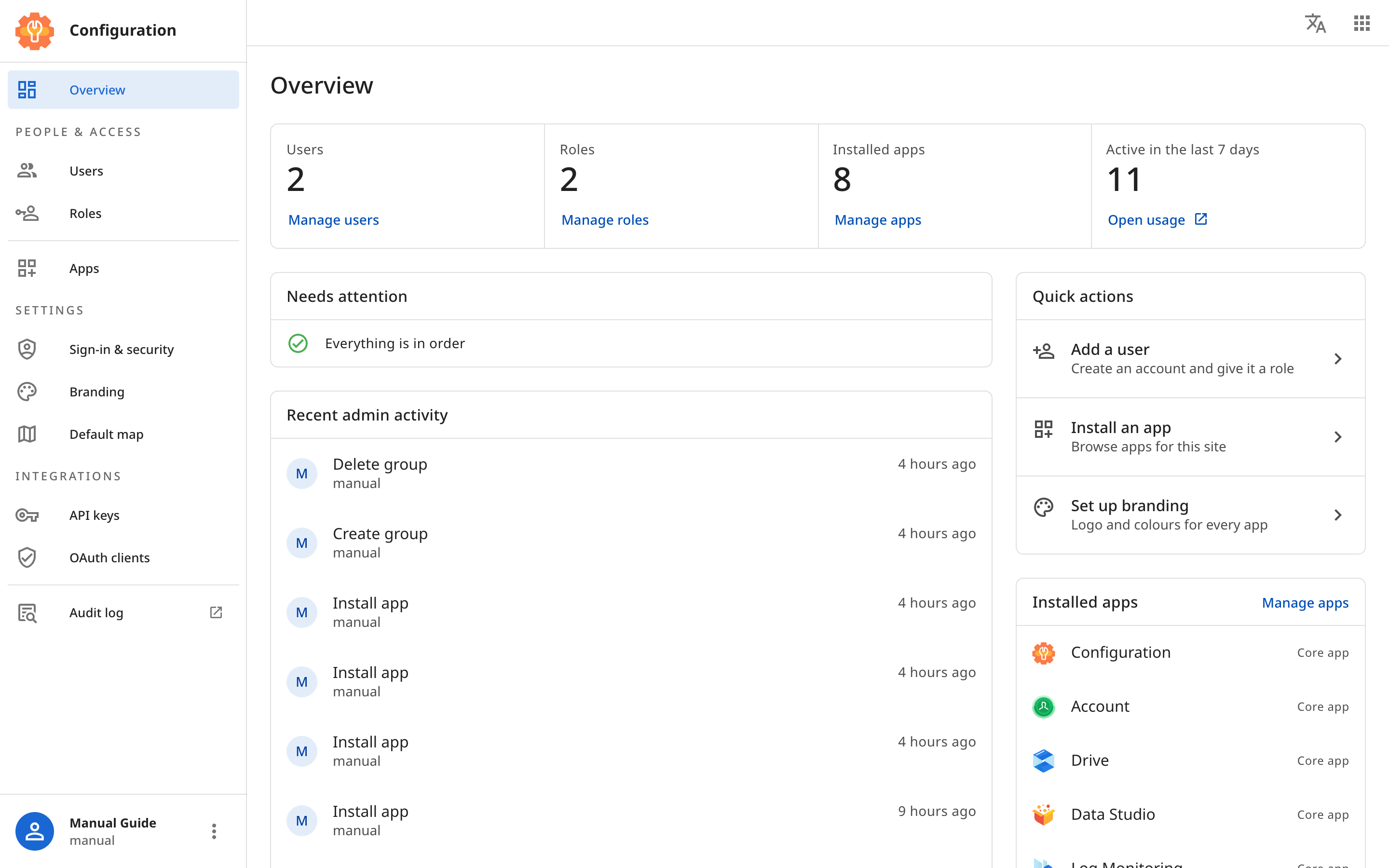
- The top row has the figures Users, Roles, Installed apps and Active in the last 7 days. Under each figure is a link to the page that manages it.
- Needs attention lists what you should fix. See the next section.
- Quick actions are shortcuts to Add a user, Install an app and Customise the sign-in page.
- Installed apps shows the site's Apps. Press an App to open its page.
- Recent admin activity shows the last eight administration tasks: who did what, and when. To see all of them, press See all in the Audit log.
If a block does not load, press Retry in that block.
Needs attention
Each row is something to fix. Press Review in the row to go to the page where you can fix it. If nothing needs fixing, the block says "Everything is in order".
| Message | What to do |
|---|---|
| "Map Studio does not answer at its address." | The App cannot be opened at its address. Check the App's address. If the address is right, tell the server administrator. |
| "The default map is not set." or "The default map no longer exists." | Choose a web map on the Default map page. |
| A message about a node or a Migration | See what the Overview reports from the System page. |
What every page has in common
- List pages such as Users and Roles have a search box at the top. Type a word and press Enter.
- The Save button is in the bar at the bottom. It works once every field is filled in correctly. When a save succeeds, the page shows no message. When it fails, a message appears at the bottom of the screen.
- Before anything is deleted, the page always asks you to confirm. Press Delete again in the box that appears.
The JSON editor
The Sign-in & security page and the Extended properties box of an API key and an OAuth client are edited as JSON.
- Edit the text in the box.
- Look at the bar under the box. If it says Valid JSON, you can save. If it says "Line 2:" followed by a reason, press that message to jump to the wrong line, then fix it.
- Press Save.
Format JSON tidies the indentation so it is easy to read. Undo reverses the last edit. Fullscreen enlarges the box to fill the screen. Press Esc to leave.