
Log Monitoring
See who did what on the platform, when and from where, and see usage statistics.
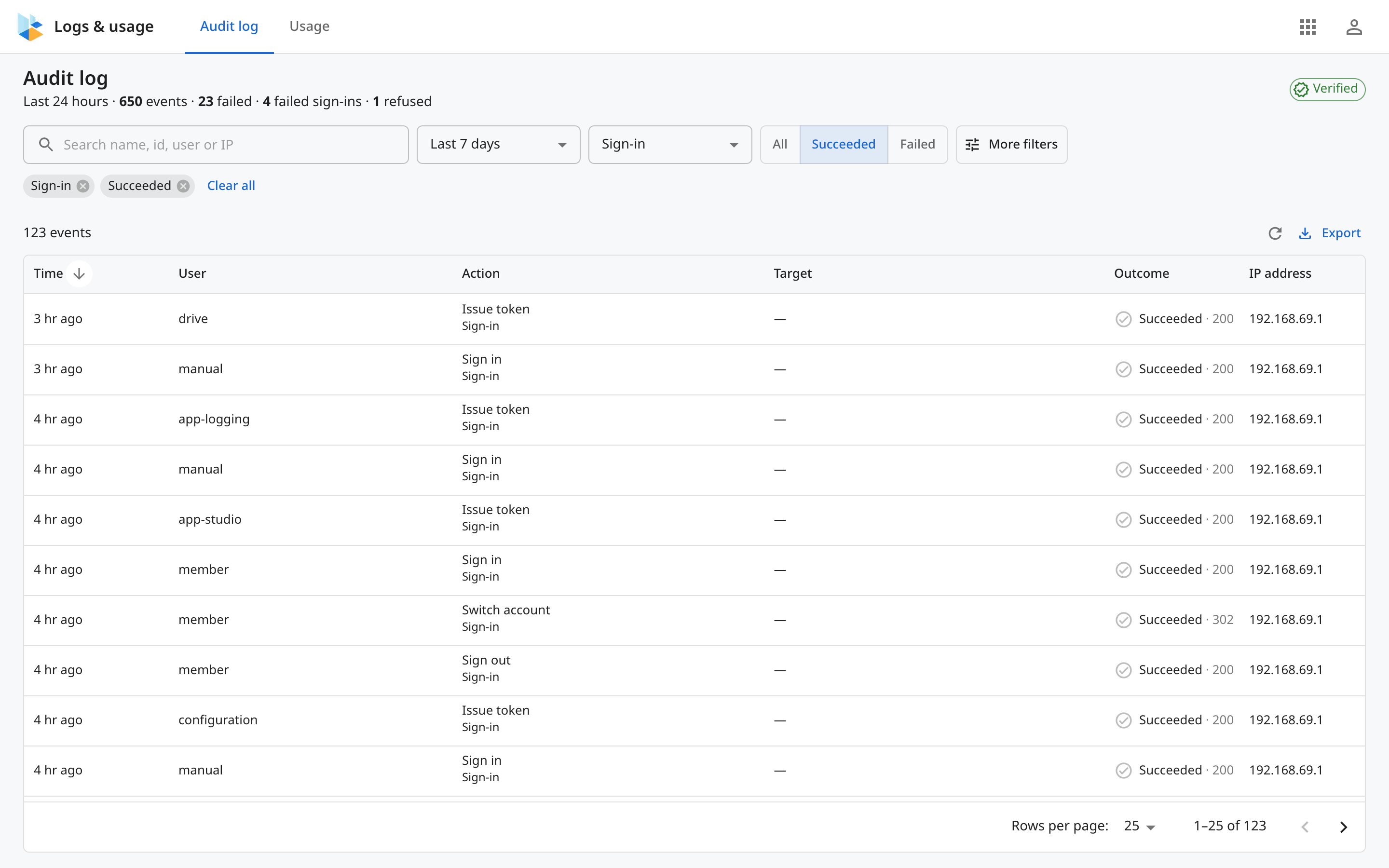
Log Monitoring shows who did what on the platform, when, from where, and whether it worked. Every time someone signs in, opens, shares or edits an Item, the platform records it as an Activity, and no one can edit or delete an Activity.
Who can open it
- The Audit log tab needs the
adminrole or theviewAuditLogpermission. - The Usage tab needs the
adminrole or theviewUsagepermission.
Without the permission, the app still opens but has no data, and says "You need the viewAuditLog permission to read the audit log." or "You need the viewUsage permission to see usage." At the moment the Roles page in Configuration has no box for either permission. Ask your administrator.
Open Log Monitoring
Open the Launcher and click Log, or click Audit log in the Configuration menu, which opens Log Monitoring in a new tab.
Two tabs
| Tab | What it is for |
|---|---|
| Audit log | Search and filter, read an Activity, see the 24-hour summary, check that the log is complete and export |
| Usage | See how many people use the platform and which Items they open most |
Language and time
Log Monitoring has no language button. The app uses the language you chose in other apps, such as Drive or Account, except the language chosen in App Studio. Time is shown in the time zone of your computer.