
Design the form
Add components to the form, link them to the table's fields, arrange them and delete them.
This page helps you add the fields people fill in to the form. Each field is a component. One component stores its answer in one field of the primary table.
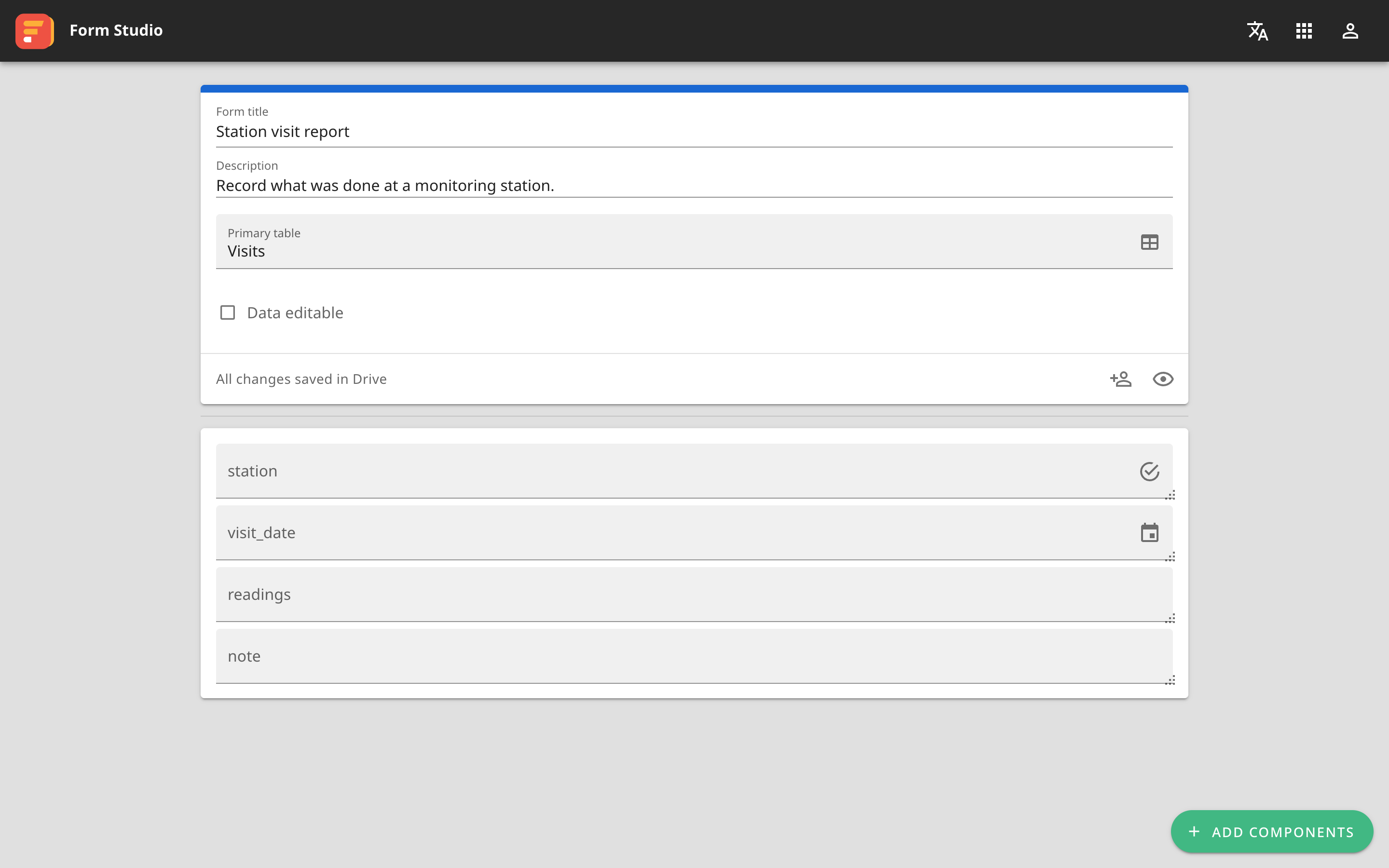
Generate components from the primary table
This is the fastest way for a new form.
- Choose the primary table.
- Press Generate from primary table in the middle of the form.
Form Studio adds one component per field, to suit the field's type, and uses the field's name as the Description. Then delete or edit them one by one.
This button is there only while the form is empty.
Add a component
- Press Add Components at the bottom right.
- Find the component you want in the panel on the right. Field type on the card says which kind of field it works with.
- Press Add to form.
The new component goes at the end of the form. Click outside the panel to close it. For each kind of component, see Field types.
Link to a field
- Hover the component, then press the gear icon, Settings.
- In the Field box, choose the field of the primary table that will store the answer.
- Click outside the window to close it.
The Field box lists only fields whose type matches the component. If it says "No field available", the table has no field of that type.
The same window has Settings, Styles and Preview panels for adjusting the component. See Common settings. Everything saves by itself.
Move and resize
Hover the component, then:
- Drag the four-way arrow icon to move it. You can place components side by side.
- Drag the bottom-right corner to resize it.
On a screen no wider than 1024 pixels, such as a phone, components line up in a single column.
Delete a component
- Hover the component, then press the trash icon, Delete.
- If you deleted it by mistake, press Undo in the "Component deleted" message within six seconds.
Components with a red border
That component is not linked to a field yet, so the answer in that box is not stored. Press Settings, then choose a Field.
This often happens after you change the primary table.
Next: share and preview the form.