
Set a layer's style
Choose whether a layer's features are drawn as symbols, lines or filled areas
A layer can have several styles stacked on top of each other, for example a light Fill with a dark Line as its outline. You can only set styles on layers that have a Styles tab. See the table in Open a layer's panel.
Add a style
- Click the layer name, then open the Styles tab.
- Click Add a style.
- Choose Marker, Text, Line or Fill.
- Set the values in the panel that opens. The map changes right away.
The styles you can choose depend on the layer's geometry. A point layer has only Marker and Text. A line layer can also have Line. A polygon layer gets all four. Text is for labels. See Add labels.
Manage styles
- Drag a row to change the order. A style higher up is drawn over a style lower down.
- Click the arrow at the end of the row to open or close that style's values.
- Click the funnel at the end of the row to make the style apply to only some records. See Filter a style.
- Click the bin at the end of the row and the style is gone right away, with no confirmation.
This picture is the Styles tab of the Stations layer in the sample map. The first row is a label. The other four rows are markers coloured by each station's status.
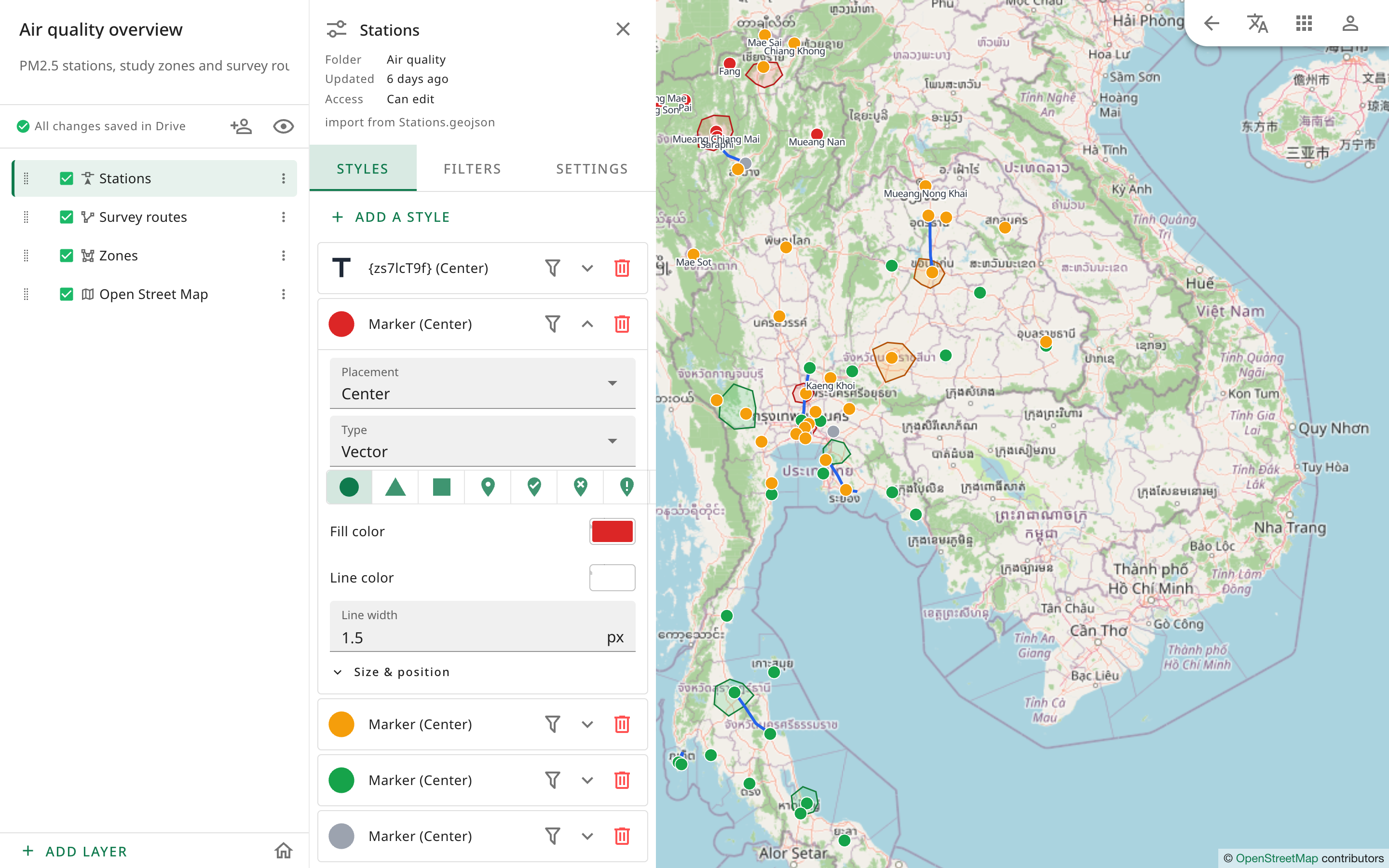
Marker
- In the Placement box, choose where to put the marker.
- Center or Point puts it at the center of the feature.
- Line repeats it along the line, or along the edge of a polygon.
- Vertex puts it at every bend.
- First vertex or Last vertex puts it at the ends of a line.
- In the Type box, choose Vector and then a shape, then set the Fill color, Line color and Line width. Or choose Image and click Choose image to use a picture from your computer.
- To change the size or position, open Size & position and set Opacity, Width, Height, Dx, Dy, Horizontal alignment, Vertical alignment or Rotation.
Line and fill
- Line: set the Line color and Line width. It works for lines and for the edges of polygons.
- Fill: set the Fill color for the area inside, and the Line color and Line width for the edge.
Click a colour box to choose a colour. The colour picker can make a colour transparent. To make the whole layer fainter, use Opacity in the Settings tab. See Opacity and visible range.