
Records
Read a table, add, edit and delete records, set a geometry, and see it on a map
A record is one row of data in a table, view or collection. Some text on the screen calls it "data". Open the item first. See Open an item.
Read the table
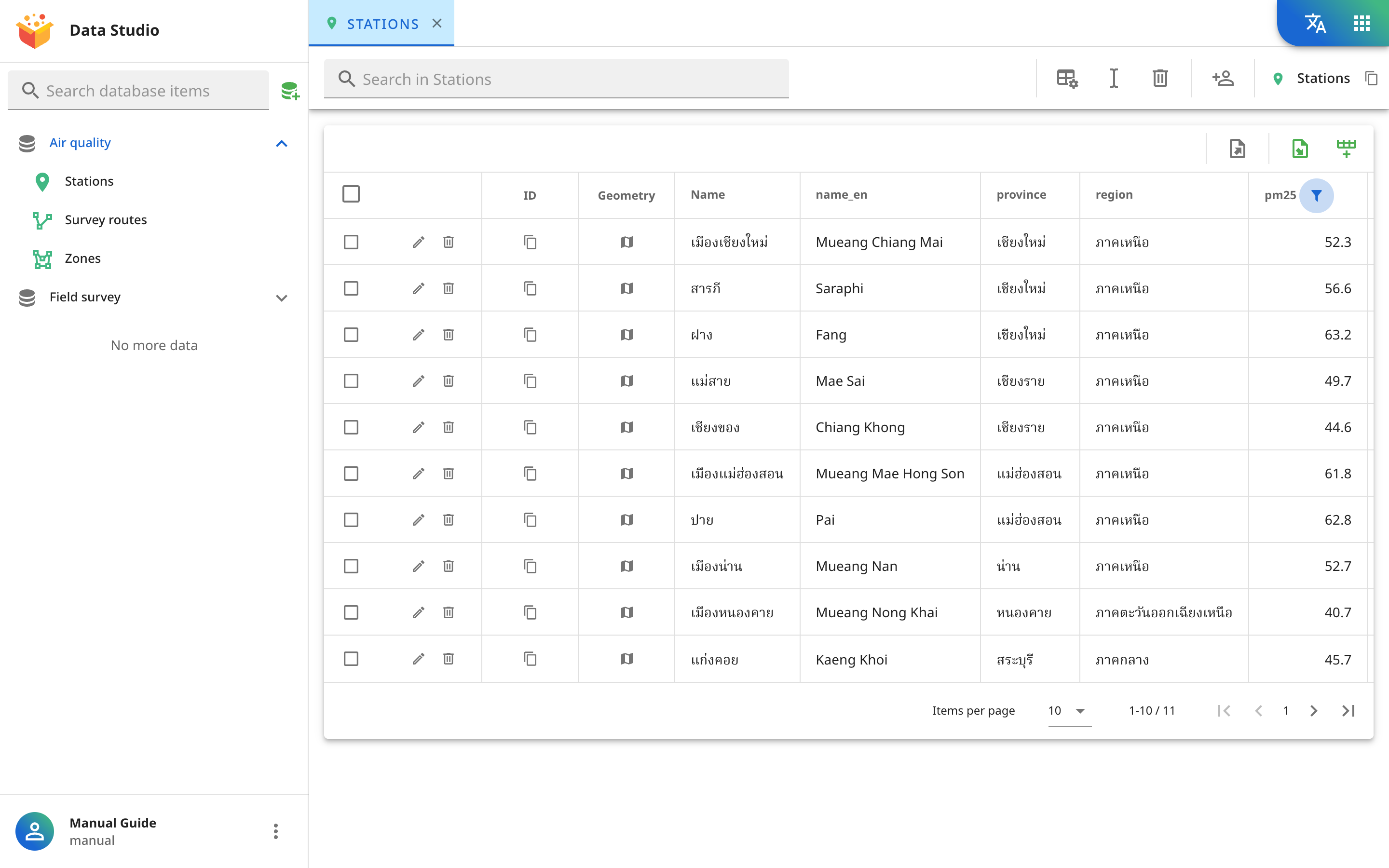
The table shows one record on each line.
- The first column has a tick box (if you can delete records) and the buttons Edit or View, and Delete.
- The ID column has a button that copies the record's ID.
- In a collection, the Geometry column has a View on map button.
- The other columns are the visible fields, in the order of the schema. See Fields.
To search, sort, filter or change pages, see Search, sort and filter.
This picture is the Stations table of the sample Air quality database, with the pm25 column filtered down to 11 of 60 records.
| What you see in a cell | What it means |
|---|---|
Grey null | The record has this field, but the value is empty. |
Grey undefined | The record does not have this field. |
| A green tick, or an empty circle | A Boolean that is True or False. |
14/07/2564 14:30 | A date and time, shown as day/month/year. In Thai the year is a Buddhist Era year. |
| A readable value, such as a country name | A one-to-one relationship field. It shows the value of the Display field. See Relationships. |
A View <field name> button | A list of values, an object or attachments. Click it to open and view. |
Add a record
- Open the table or collection. You cannot add records to a view.
- Click the Add data icon in the toolbar.
- Fill in the form. See The form.
- Click Submit.
Cancel closes the form without saving. You must be a Writer or higher. See Who can do what.
The form
The form has one box for each visible field. It has no ID and no fields the platform adds itself. Submit stays faded until every Required field has a valid value.
| Field type | Box |
|---|---|
| String, Number | A text box, a number box |
| Boolean | A tick box |
| Date and time, Date, Time | A box that opens a picker, with Clear, Cancel and OK |
| Relationship | A box that opens a list of records to choose from. See Relationships. |
| Multiple attachments | A box for files. See Attachments. |
| Geometry | A map. See Set a geometry. |
A field with a default value already has the value filled in. See Default values.
Edit a record
- Click the pencil icon, Edit, on the record's row.
- Change the values, then click Submit.
If your role cannot edit, the button is an eye, View, and the form opens read-only. Close it with the x at the top right.
Set a geometry
In a collection, the form has a map for the Geometry field.
- If you know the coordinates or the name of a place, type it in the Search coordinates or place box and click Mark. The map moves there, with a pin to help you find the position. The pin is not the record's geometry. Clear removes the pin.
- In a point collection, click Use to make the coordinates you typed the record's point.
- Or click Draw, then draw a point, line or area on the map. Click Done when you finish drawing.
- If the record already has a geometry, click Edit to change it, then click Done.
The Undo and Redo buttons go back or forward through your changes. The Measurement tools button opens a measuring panel on the map. The cross in the geometry box under the map deletes the geometry.
See a geometry on a map
Click the View on map button in the Geometry column. A window shows the record's geometry on the platform's default map. If the record has no geometry, the cell shows null or undefined instead of the button.
Delete one record
- Click the bin icon, Delete, on the record's row.
- Click Delete in the Delete? box.
You must be an Item organizer or higher. Deleting cannot be undone.
Delete several records
- Tick the box at the left of each record. The box in the column heading chooses every record on that page.
- Click Delete in the bar above the table.
- Click Delete in the Delete? box.
Clear in the same bar removes all the ticks. A view has no tick boxes.