
Adjust how a widget looks
Which widget suits which data, and how to adjust titles, colours, numbers and text.
This page helps you pick the widget that suits your data, then adjust its title, colours and numbers so it is easy to read. You do this in the Appearance section of the panel on the right.
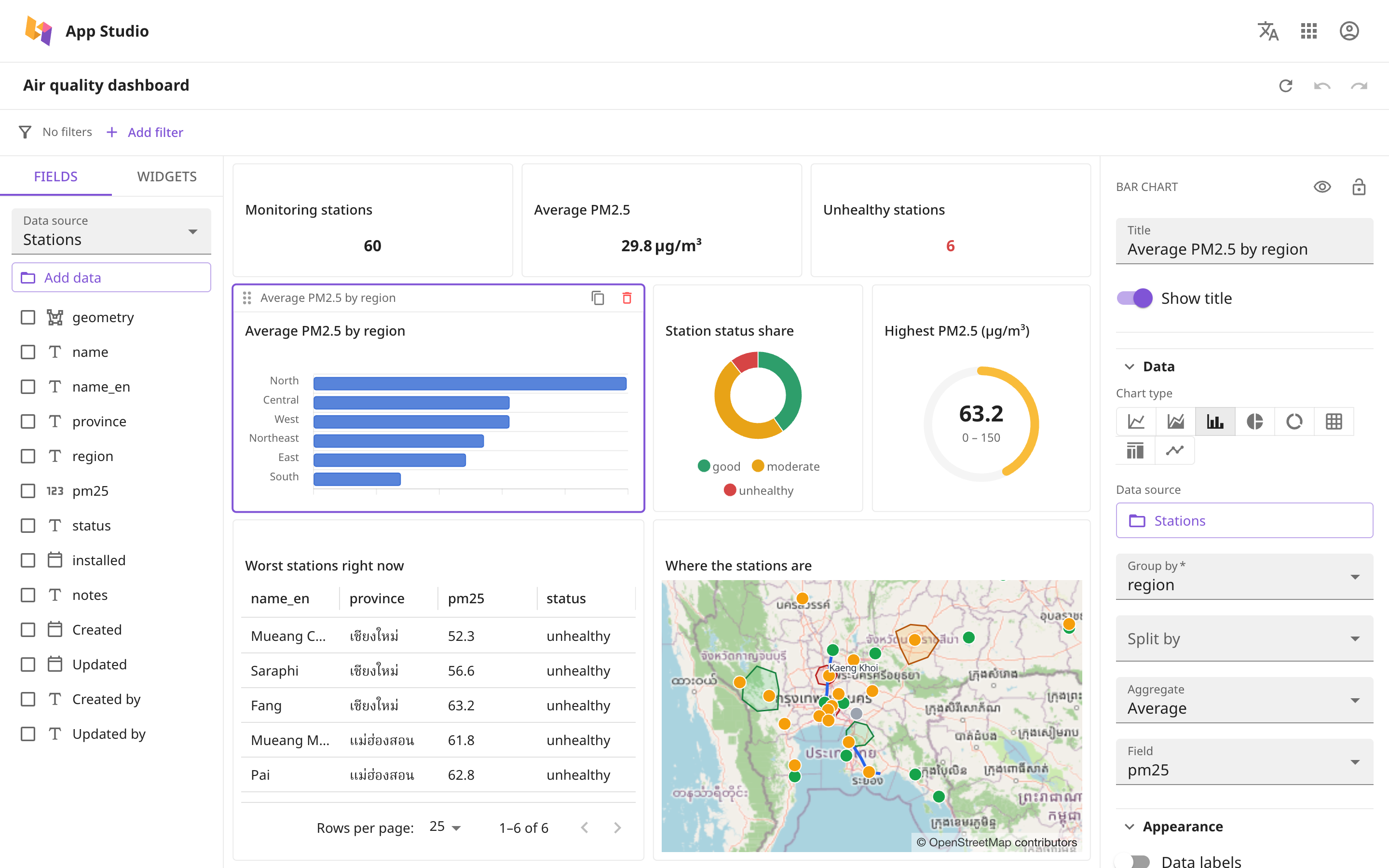
Which widgets there are
| Group | Widgets | Used to show |
|---|---|---|
| Charts | Line chart, area chart | Values that change over time |
| Bar chart | Comparing values between groups | |
| Pie chart, donut chart | The share of each group | |
| Table | Records, one row at a time | |
| Key figures | Key figure, gauge | A single number, such as a total |
| Analysis | Scatter chart | The relationship between two number fields |
| Heat map | The value for each pair of groups, drawn as a grid | |
| Tree map, funnel | Shares, or the count at each stage | |
| Histogram | How number values are spread out | |
| Content | Map | Records on a map. See The map widget |
| Text, image, section header | Explanations, pictures and headings that divide sections |
Name a widget
Type in the Title box at the top of the panel. The title appears on the widget at once. To hide it, turn off Show title.
A key figure shows only a number, so give it a title that says what the number is.
Change colours
Press any colour button and a card opens.
- Follow theme: uses the theme's colours, easy to read on both light and dark backgrounds.
- Palette: choose from ready-made colours.
- Custom: pick a colour yourself, or type a code in the Hex box.
Set up charts
Each kind of chart has only the options that apply to it.
| Option | Result |
|---|---|
| Legend | Shows the colour key. Choose where it goes in Legend position |
| Data labels | Shows the numbers on the chart |
| Series colour | Changes the chart's colour |
| Horizontal | Lays the bars out horizontally |
| Stacked | Stacks bars split by a second field into one bar |
| Line style | Choose Smooth, Straight or Stepped lines |
| Buckets | Splits the histogram's values into 2 to 50 buckets |
Name, colour and order each value
A chart that has Group by gets a Legend, colour and order list, with one row per value.
- Click the colour box to change that value's colour.
- Type in the text box to change the name shown. If you clear the box, it goes back to the original name.
- Click the eye icon to hide or show that value.
- Drag a row to change the order.
Records whose field is empty are in the "(Empty)" row.
Hiding only stops that value from being drawn. The other values are not recalculated. To leave records out of the calculation, use conditions.
If a bar chart has no Split by, every bar uses the one Series colour, so the colours in this list have no effect.
Table
- Row height: choose Compact, Standard or Comfortable.
- Rows per page: choose 25, 50 or 100.
- Striped rows: puts a light colour on every other row.
Viewers can click a column heading to sort. To let a click on a cell in the table filter other widgets, see Click a chart to filter.
Key figures and gauges
- Prefix and Unit add text before and after the number, such as ฿ or kg.
- Decimals: choose Automatic or 0 to 3 places.
- Value colour changes the colour of the number.
Compare with the previous period
- In Trend over, choose a date field.
- In Period, choose Day, Week, Month, Quarter or Year.
- Turn on Show change to show an arrow and a percentage, or turn on Sparkline to show a small trend line.
The number shown is the value for the latest period.
A gauge's scale and colours
- Enter the Minimum and Maximum of the scale. If you do not, it is 0 to 100.
- Press Add threshold, enter a number in At or above, then set the Status to Good, Warning, Serious or Critical.
You can add up to three thresholds. The gauge uses the colour of the highest threshold the number has reached.
Text, images and section headers
- Text: type in the Text box, then choose Text size, Alignment and Text colour. You cannot add links or bold.
- Image: paste the image's address in the Image URL box. The address must start with
https://. - Section header: uses the widget's Title as a heading that divides sections. You can adjust its size, alignment and colour like text.
If you find an old filter widget
A dashboard made a long time ago may have a Filter widget that says "Filters now live in the bar above the dashboard. This widget can be deleted." Delete it and use the filter bar instead.