
UseMap Studio
Map Studio
Open Map Studio, learn its three screens, and see who can edit a map
Use Map Studio to make web maps from data in Drive and from map services, then share them for others to open.
Open Map Studio
- Click the Launcher icon at the top right of any app, then choose Map Studio.
- If you are not signed in yet, click Sign in.
If the screen says "This app isn't installed on this site", ask an administrator to install it from the Marketplace. See Apps and the Marketplace.
Three screens
| Screen | What it is for |
|---|---|
| All maps | The first page. Use it to find, create and open maps. See Find, create and open maps. |
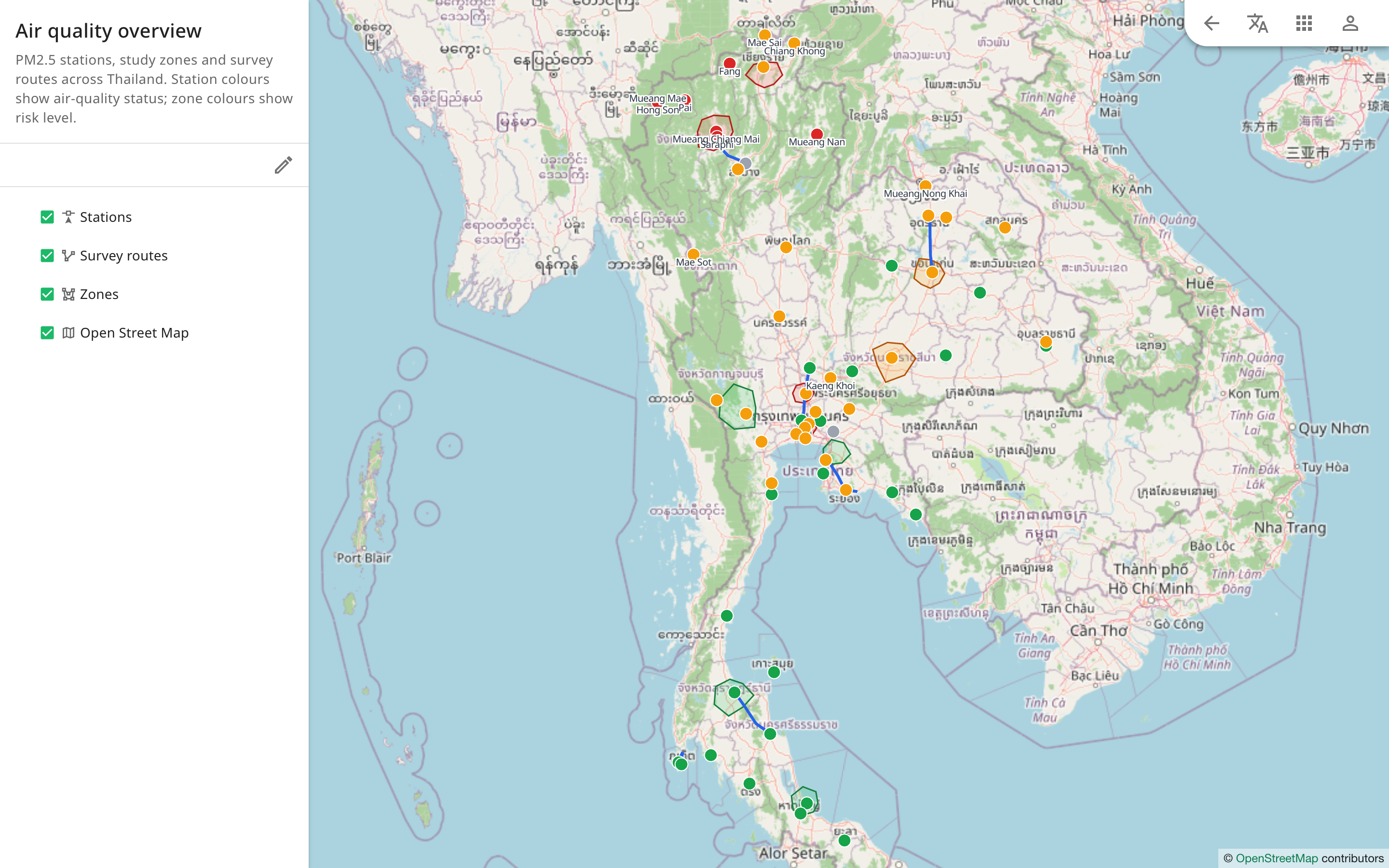
| The editor | Edit a map, and add and set up layers. See The map editor. |
| The viewer | View a map only, with no editing tools. See The viewer. |
In the editor and the viewer, click the arrow Back to home at the top left to go back to All maps.
Who can edit a map
People with the role Owner, Organizer or Item organizer on a map can edit it. Writer, Commenter and Reader can only open the viewer. To let someone edit, share the map with them. See Share a map.
What Map Studio cannot do
- You cannot draw or measure on the map, and clicking a feature shows no information.
- There is no basemap to start with. You add one yourself as a layer. See Add a basemap.
- You cannot change data. To change data, use Drive or Data Studio.